
Pikafish AI Web Help
The web version and app share this guide. Screenshots use Chinese; follow the numbered labels.
Usage guide
Basics
Interface
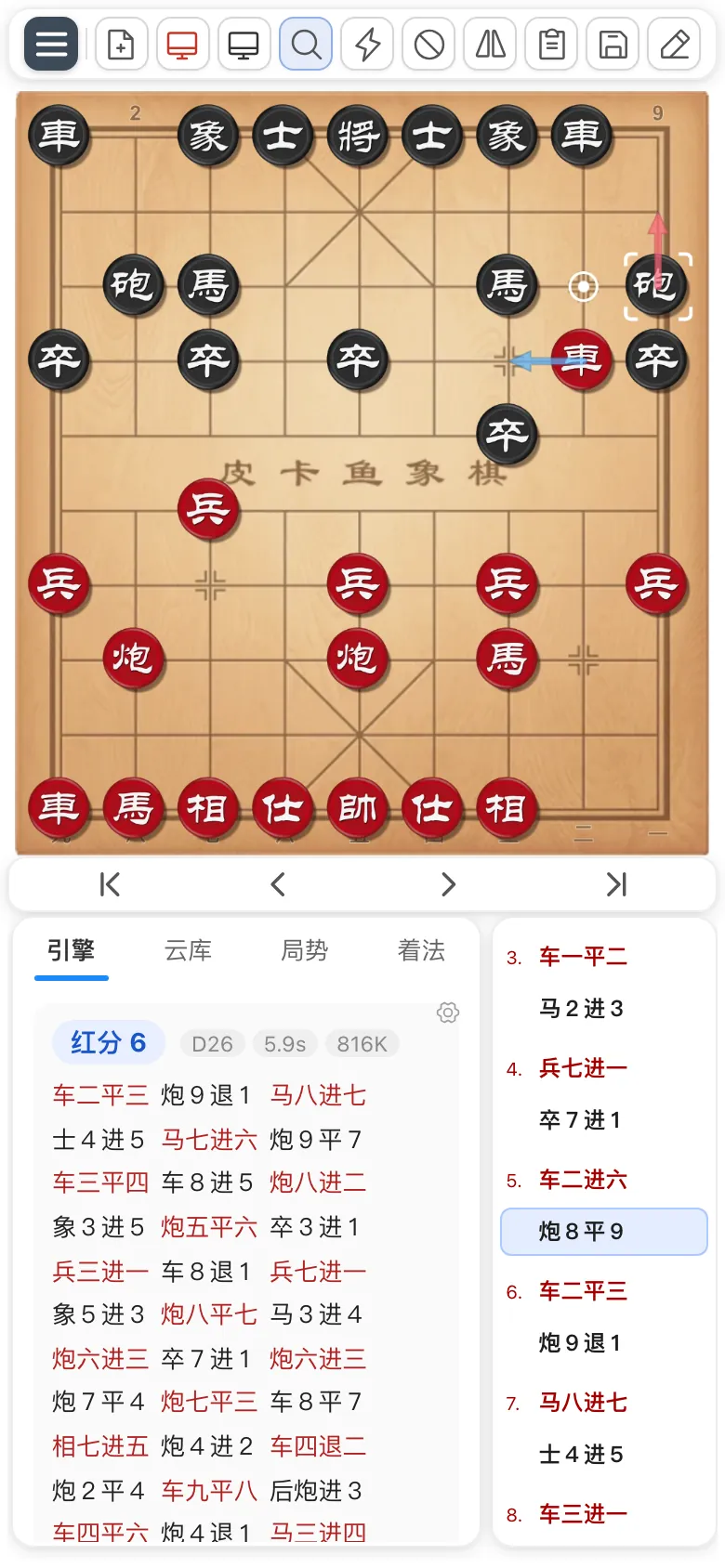
- 1Toolbar: feature buttons
- 2Board: select a piece, then its destination
- 3Navigation: step through the moves
- 4Panels: engine, ChessDB, evaluation and moves; tap a tab or swipe sideways
- 5Move list: tap a move to open its position
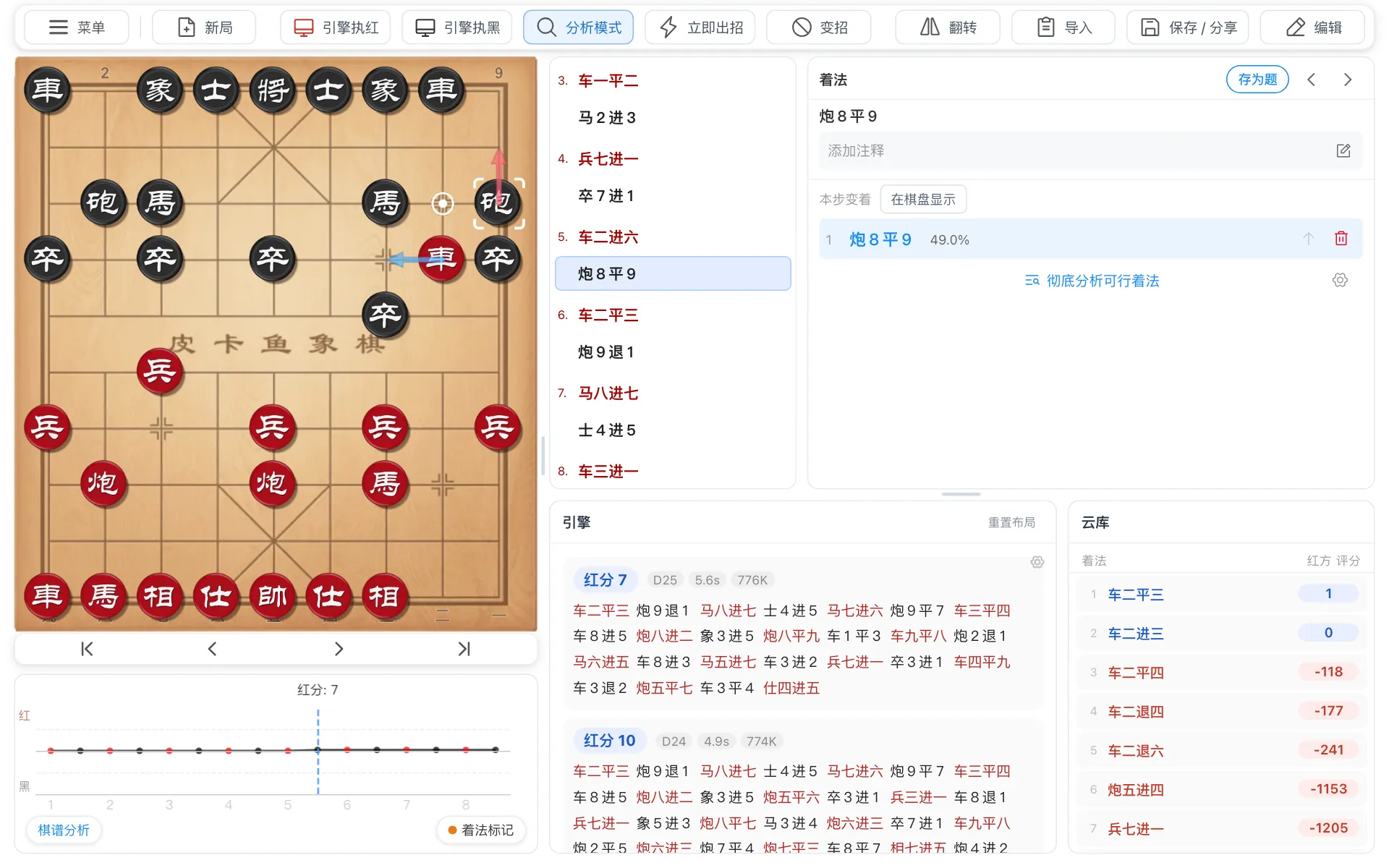
- 1Toolbar: buttons include text labels
- 2Board: select a piece, then its destination
- 3Evaluation graph: advantage over the game
- 4Moves and details: select a move to see its variations and notes on the right
- 5Engine and ChessDB: calculated and stored results
Analyze a position
- Open the position you want to analyze.
- Click
Analyze; light blue means it is on. You can also useStart analysisin the engine panel. - Wait for the score, recommended line and board arrows.
- 1Start or stop analysis
- 2Blue: recommended move; pink: expected reply
- 3Latest result at the top
- 1Start or stop analysis
- 2Blue: recommended move; pink: expected reply
- 3Latest result at the top
- Recommended line: red text is Red's moves; black text is Black's.
- Change position: play a move or use ; AI follows the new position.
- Stop: click again.
Tip
AI runs on your device and uses power. Turn it off when not needed to reduce heat and battery use.
Scores
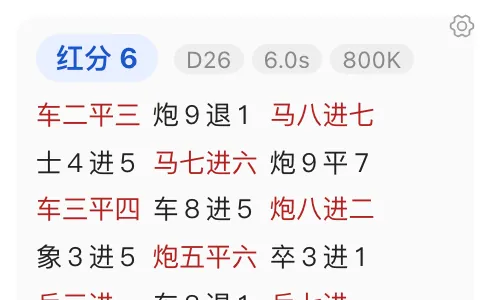
- 1Score:
Red Score 6means a slight Red advantage - 2Search: D26 = depth 26, 6.0s = 6 seconds, 802K ≈ 800,000 positions per second
- 3Recommended line: continuation from this position
- Positive favors Red; negative favors Black. Near 0 means roughly equal.
- Above +200: Red has a large advantage; below −200: Red is much worse.
Checkmate 5: Red can mate within 5 moves; a negative number means Red is being mated.
After Flip › Rotate Board puts Black at the bottom, the score becomes Black Score; positive favors Black.
Tip
Scores change as the search deepens. Wait for greater depth before judging.
Set up a position
- Click
Edit. - Select a piece in the tray, then a board square to place it.
- To move a piece, select it and its new square. To remove it, select it and then the tray.
- Set Red or Black in
To move. - Tap
完成(Done) at the top right, then to analyze.
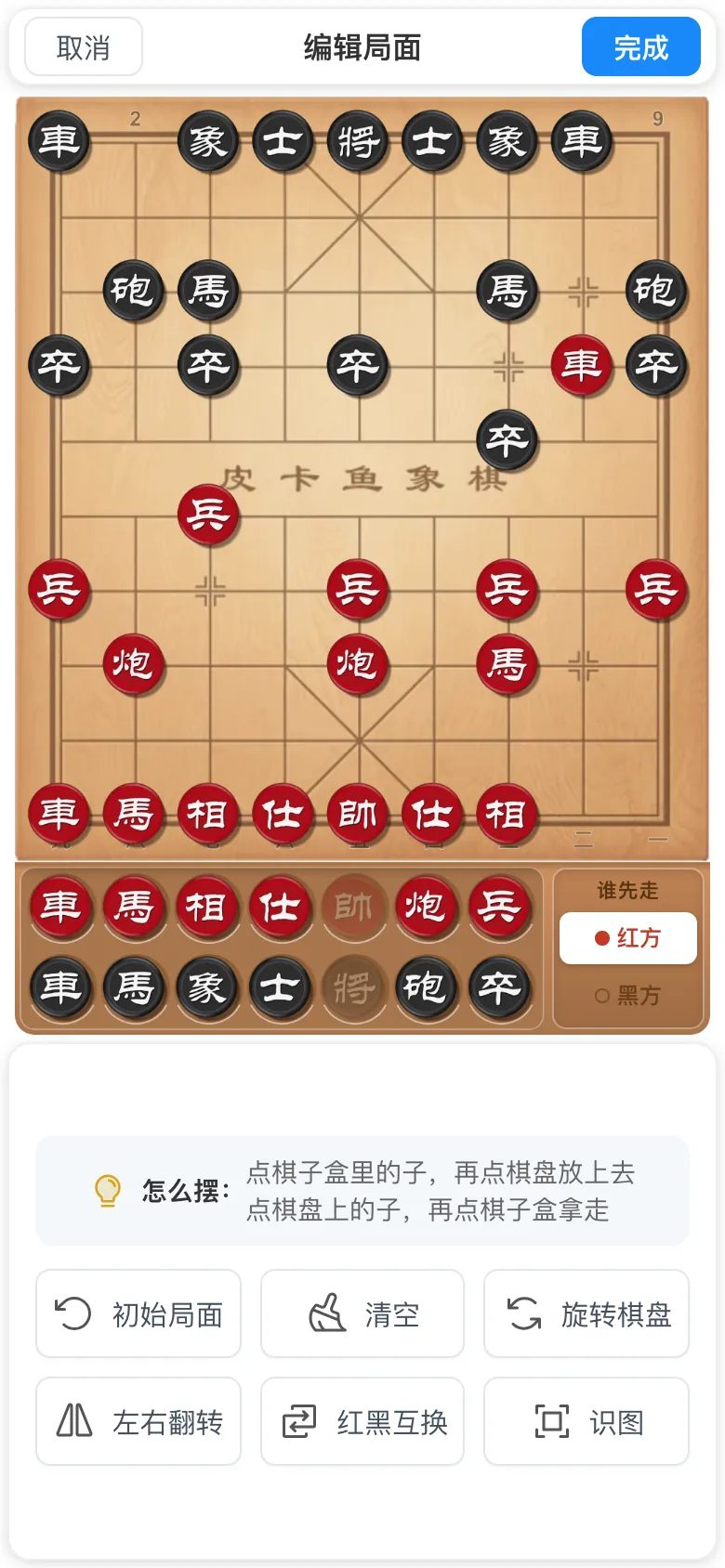
- 1
取消(Cancel): discard edits;完成(Done): confirm the position - 2Start position, clear, rotate, mirror, swap colors and image recognition
- Click
Edit. - Select a tray piece, then a board square, or drag it onto the board.
- Remove a piece by dragging it back to the tray.
- Set Red or Black in
To move. - Click
Editagain to finish.
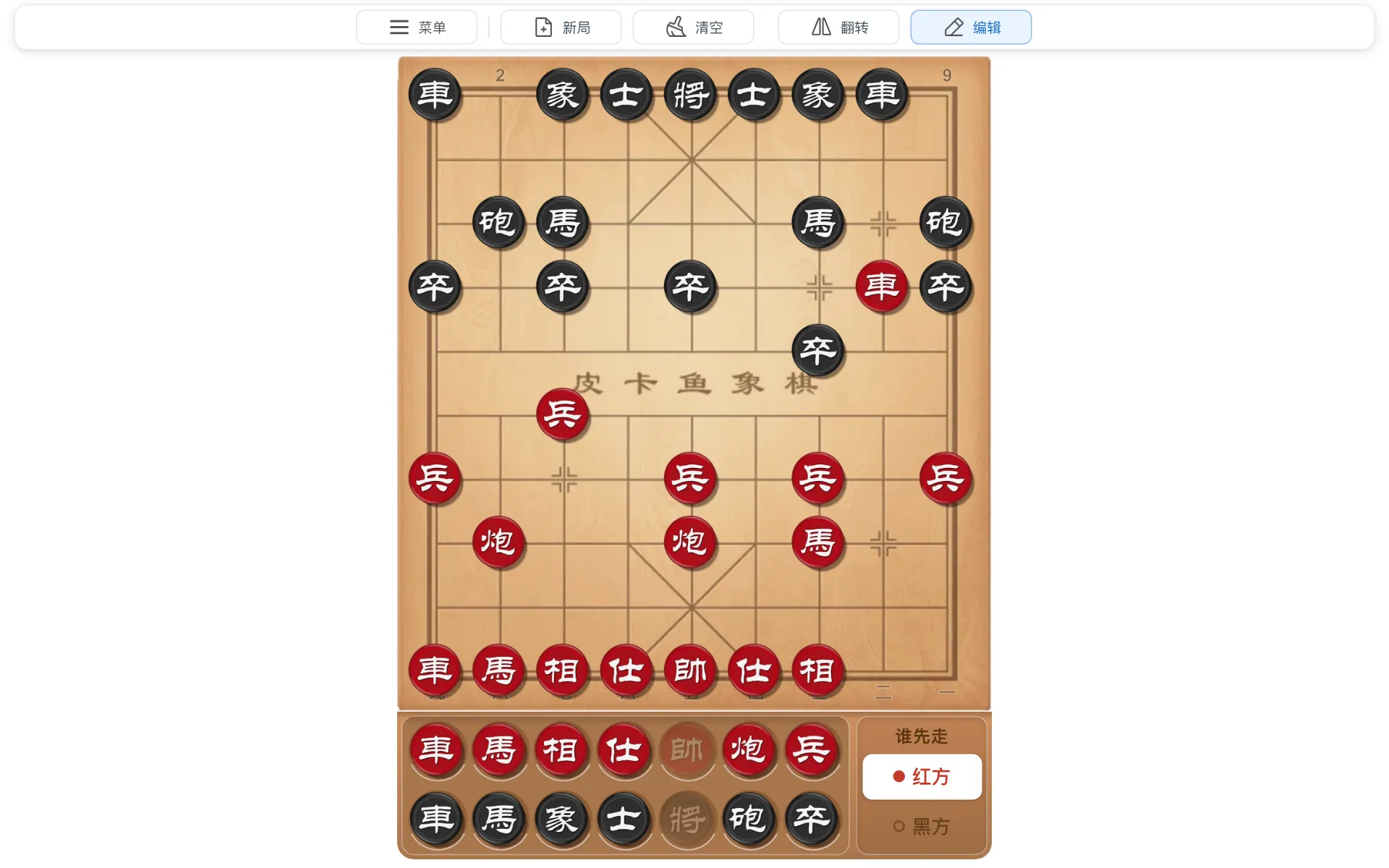
- 1Editing shows
New(start position),ClearandFlip - 2Click
Editagain to finish
Note
Invalid positions, such as a missing king or facing kings, must be corrected before finishing.
Import a game
Click Import and choose text, a file or an image; see Import.
- Text: DhtmlXQ, PGN and Chinese move notation, such as “炮二平五 马8进7”.
- Images: recognition opens the editor; check the position and confirm it. Photograph the board straight on.
Tip
Paste a board screenshot with Ctrl+V (Mac: ⌘V). The desktop app also has Select area (default: Alt+Shift+X) to capture boards in other apps.
Tip
For games from other sites, copy the move text; their URLs cannot be imported directly.
Importing prompts you to save any unsaved game first.
Common features
Play against AI
- Select
Menu›Display Mode›Playto hide scores and recommendations. - To play Red, click
Play black; to play Black, clickPlay red. - Play a move; AI replies automatically.
- Click the active button again to stop. For review, switch back to
Display Mode›Analyze.
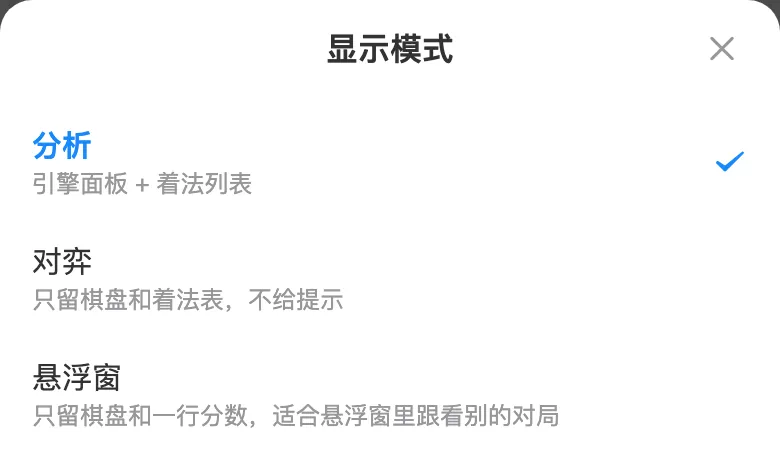
- 1
Play: play a game;Analyze: analysis and review
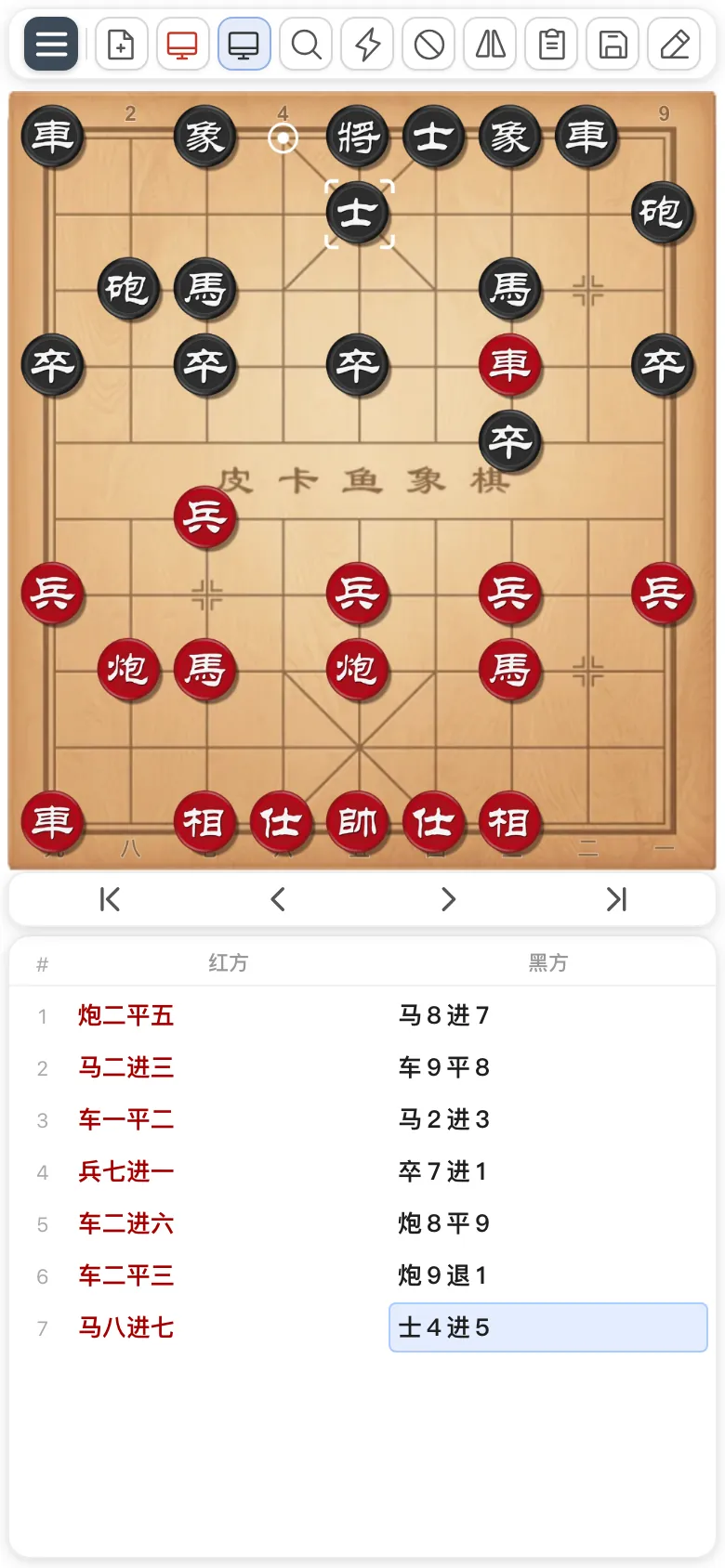
- 1
Play blackhighlighted: AI plays Black - 2
Move now - 3
Exclude - 4Play mode shows only the board and moves
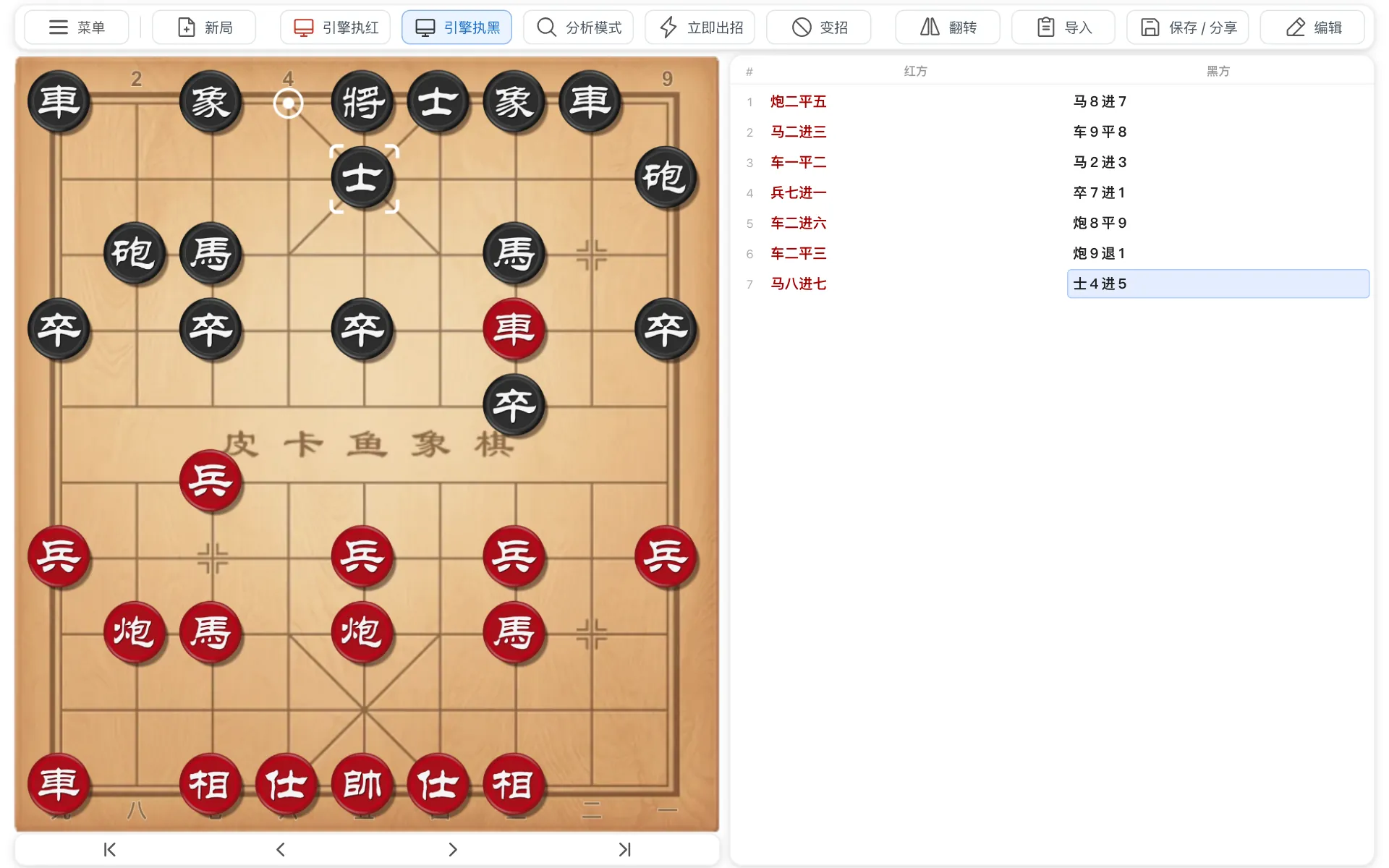
- 1
Play blackhighlighted: AI plays Black - 2
Move now - 3
Exclude - 4Play mode shows only the board and moves
- Undo: click to take back your move and AI's reply.
- Strength:
Menu›Settings›Engine & thinking›Skill Level, from 0 to 20; 20 is unrestricted.
AI can use opening moves from ChessDB without calculating them locally.
Tip
Enable both Play red and Play black for AI self-play.
Note
Analyze and Play red / Play black cannot run together; enabling one disables the other.ChessDB
ChessDB (chessdb.cn) provides precomputed moves and scores.
- Engine: calculates the current position on your device.
- ChessDB: retrieves stored results online; some positions are missing.
Tap the ChessDB tab in the analysis panel.
ChessDB appears beside the engine.
- Each row shows a move and score, best first. Click a row to play it.
- Endgame database results show
Mate (n)orDraw. Position not in ChessDB: use engine analysis instead.
Note
ChessDB requires internet access, not a login.
Analyze a game
- Import or enter the game; see Import a game.
- Open
Evaluationand tapGame Analysisat the bottom left. - Choose
Quick analysisfor the best move at each position, orThorough analysisfor more playable alternatives; it takes longer. - Click
Startand wait for completion.
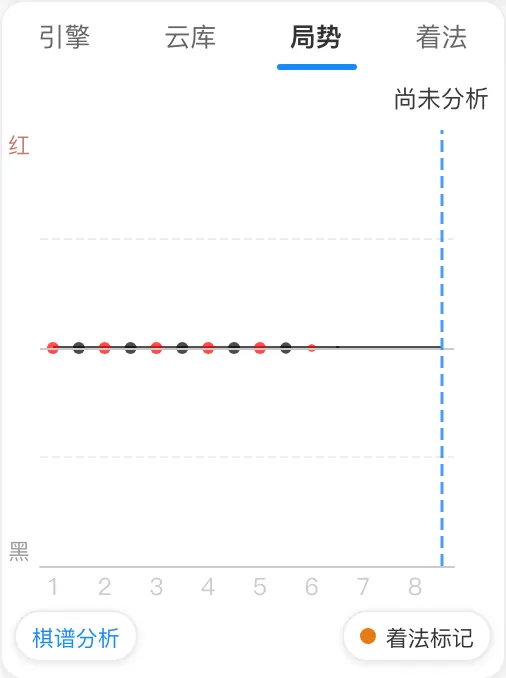
- 1
Game Analysisbutton
- Import or enter the game; see Import a game.
- Click
Game Analysisat the graph's bottom left. If the graph is hidden, open it withEvaluationbelow the board. - Choose
Quick analysisfor the best move at each position, orThorough analysisfor more playable alternatives; it takes longer. - Click
Startand wait for completion.
Analysis results opens when finished:
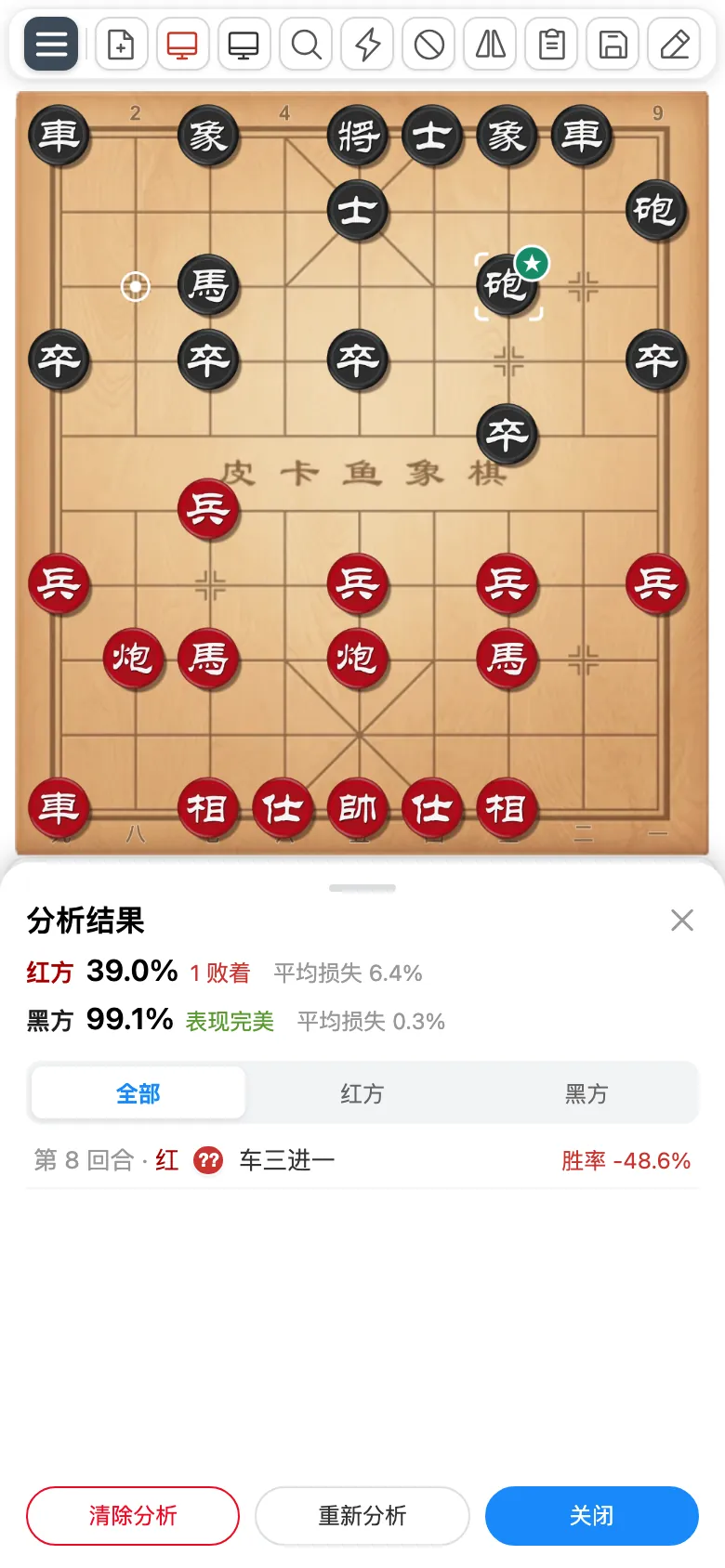
- 1Accuracy and problem-move counts for both sides
- 2Click a move to open its position; click
??for the recommended move
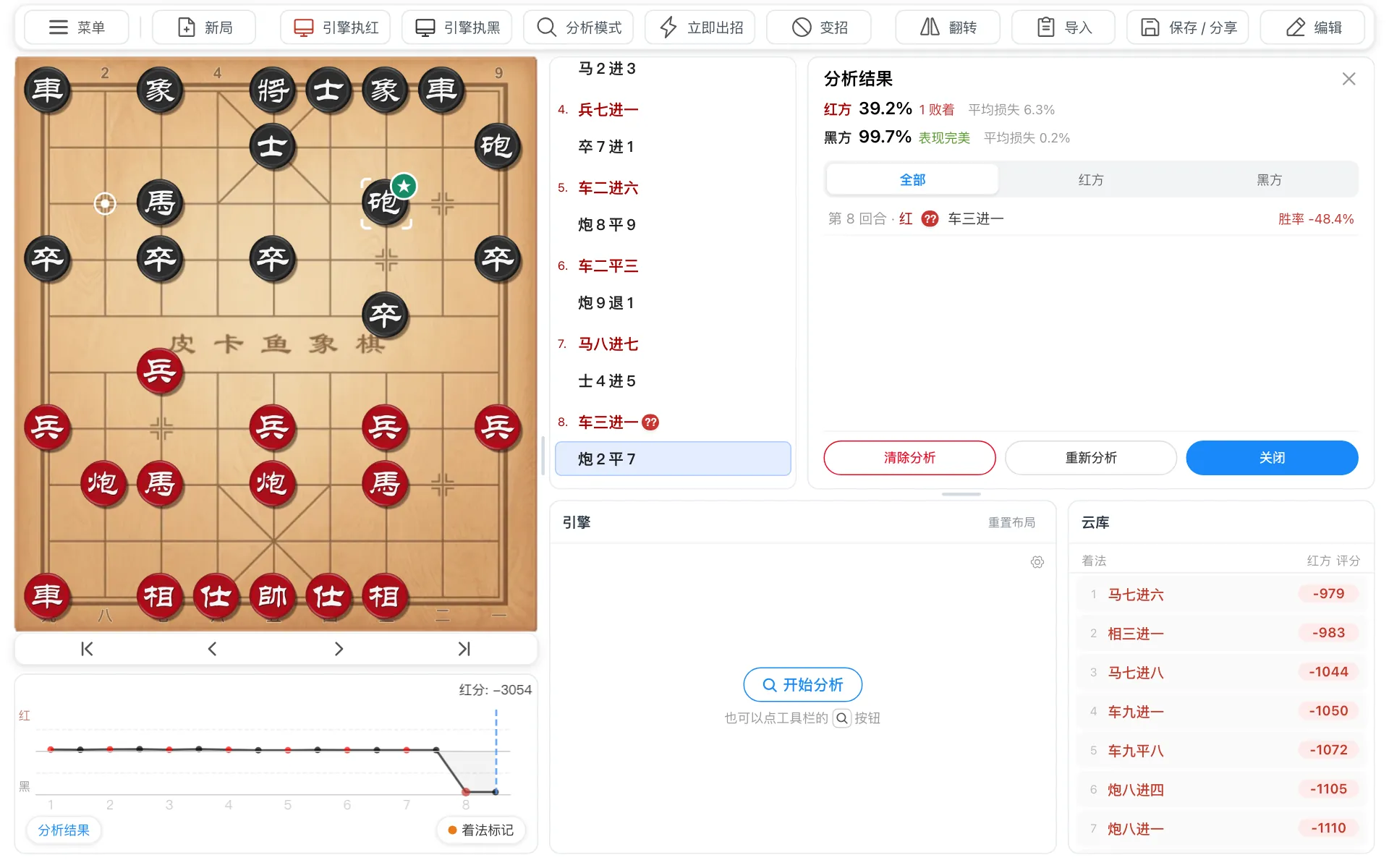
- 1Accuracy and problem-move counts for both sides
- 2Click a move to open its position; click
??for the recommended move - 3Evaluation graph: a sharp drop indicates a mistake
Problem moves are marked by loss of winning chances:
?!Inaccuracy: 5%–10% loss?Mistake: 10%–15% loss??Blunder: over 15% loss, or a missed mateM+: a slower mate; not counted as an error
Piece badges also show ★ Best, ! Excellent and ✓ Good.
Evaluation graph
The horizontal axis shows turns. Higher favors Red, lower favors Black; rotating the board reverses this. Click the graph to jump to a move.
Browsing moves with analysis on also records scores and builds the graph.
Note
Playing a move or leaving the page stops game analysis; completed results remain.
Variations and notes
Add a variation: return to a move and play an alternative. The original line stays; a badge such as 1 var appears.
Move panel: tap the highlighted move again, or open the Move tab in the analysis panel.
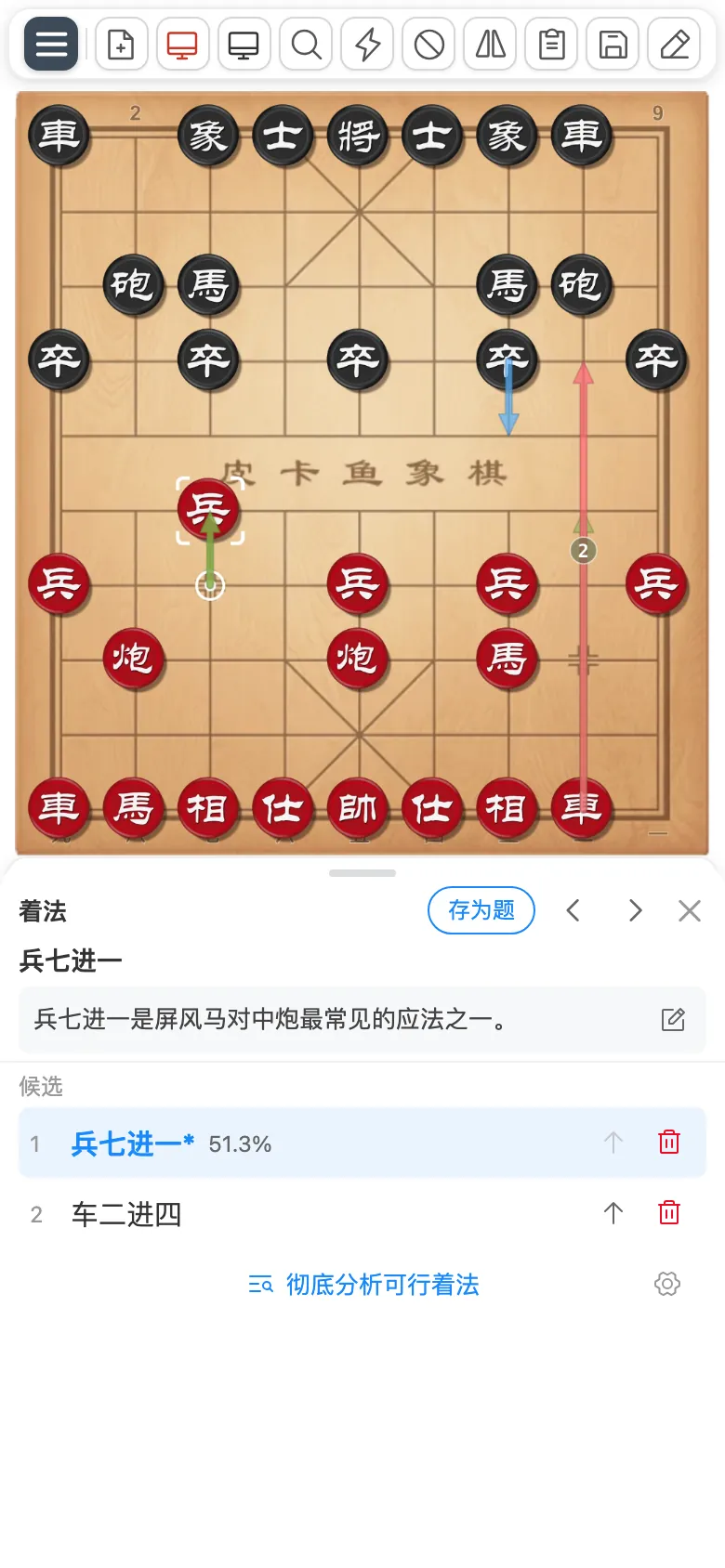
- 1Notes: edit, then tap
Done; saved automatically - 2Variations: tap to switch; row numbers match the board arrows
Move details: select a move; its notes and variations appear on the right.
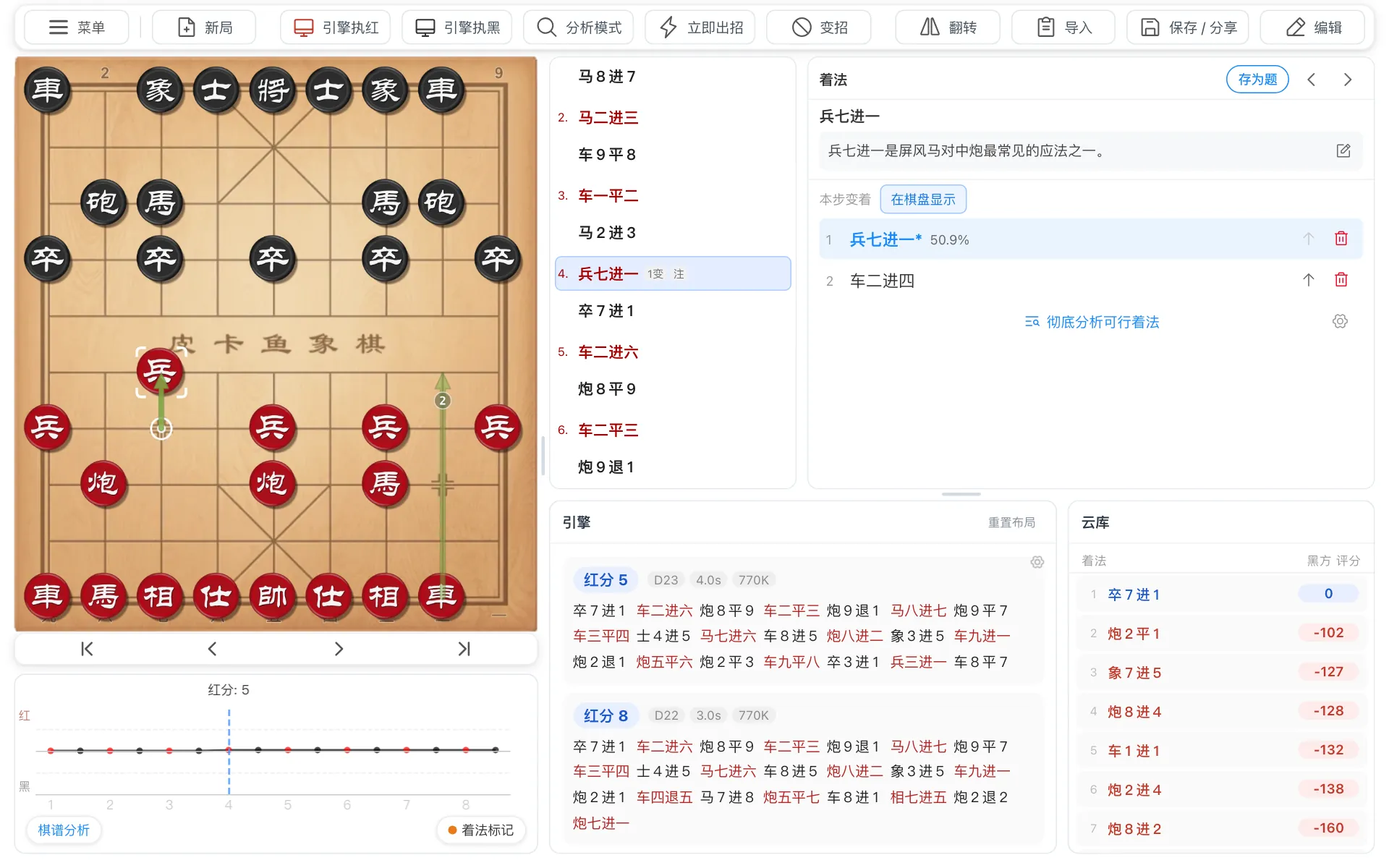
- 1Notes: saved automatically after editing
- 2Variations: click to switch
- 3Show on board: show variation arrows; Esc hides them
See Move panel and navigation for reordering, deleting and browsing moves.
Save games
Click Save / share, choose the first option and enter a title.
- Changes save automatically after the first save. Orange dot: unsaved; green check: saved; red exclamation: save failed.
- Web: sign in to save to your account and access games across devices.
- Phone and desktop apps: save locally without signing in, or sign in to save to the cloud.
Find saved games in Library and recent games.
Tip
Within a collection, use ‹ › above the board to switch games.
Note
Local games exist only on this device. Export a backup before uninstalling.
Study cards
- Open the move panel and click
Save as card. AI analyzes the position thoroughly before saving it. - Open
Menu›Study cardsto practice. - Play the best move for feedback, or click
Show answer.
- The card uses the position before the move; your actual move is labeled
Played. - Correct answers increase the review interval; wrong answers return after 10 minutes.
Tip
After game analysis, open problem moves from the results and use Save as card.
Note
Study cards require sign-in.
Share and export
Open Save / share › Share / Export…, or Menu › Export & share.
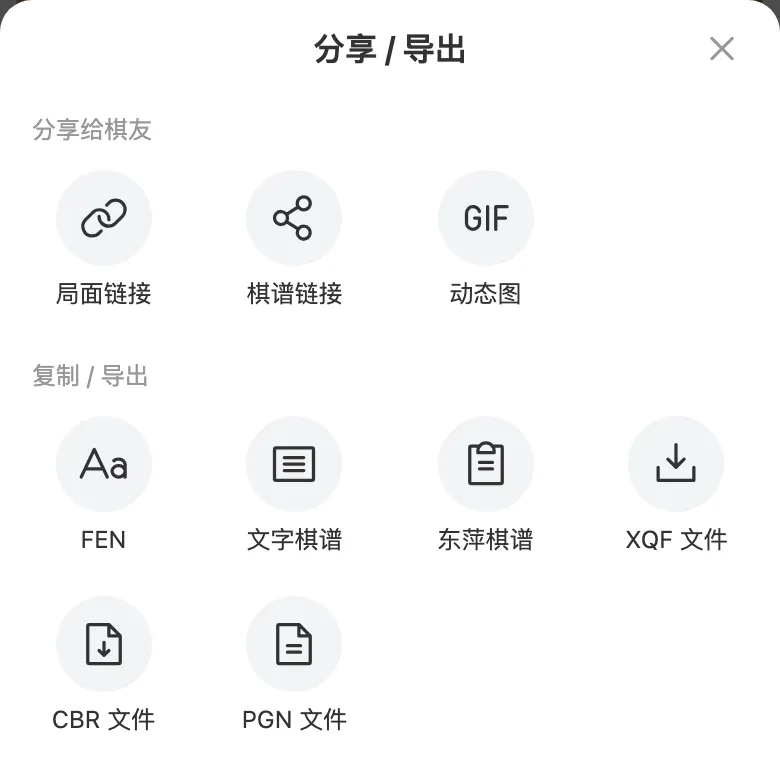
- 1Share a link or animated GIF
- 2Copy text or export a file
See Share and export options for each format.
Note
Paste copied links or text into your chat app. On phones, use the system share menu to save or send exported files.
Troubleshooting
Analysis does not start
On first use, wait for the engine download. If it keeps failing in the browser, try a newer browser.
Finish editing and correct any invalid position before analyzing.
Changing scores
Scores change with search depth; see Scores.
Add to the home screen
Android or desktop: open in Chrome / Edge and select Menu › Add to Home Screen. iPhone: open in Safari and select Share › Add to Home Screen.
Report a problem
Open Menu › Feedback and describe the issue with a screenshot. You can also join QQ group 829220986.
Button reference
Toolbar


-
Menu: library, recently read games, study cards and settings -
New: return to the start position -
Play red,Play black: AI plays that side; see Play against AI -
Analyze: analyze the current position; see Analyze a position -
Move now,Exclude: move immediately or choose another move -
Flip: rotate or mirror the board -
Import: open games, paste moves or recognize a board image -
Save / share: save, share or export; an orange dot means unsaved changes -
Edit: set up a position
Tip
Menu › Button guide explains each button.
Move now and Exclude
-
Move now: play AI's current best move immediately. -
Exclude: take back AI's last move and replace it, or exclude its current choice while thinking. Can be clicked repeatedly.
Position editor
Clear: remove all pieces except the two kings.Swap Colours: swap piece colors and the side to move.
Import
Click Import and choose:
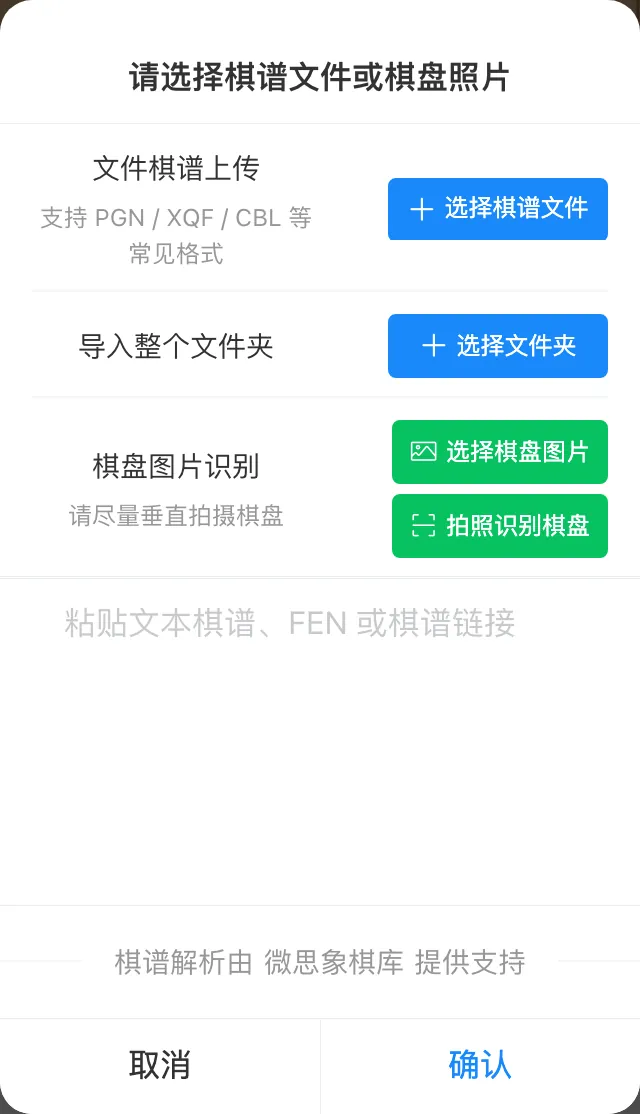
- 1Game file: PGN, XQF, CBR, CBL and other supported formats
- 2Image: select a photo or screenshot, or take a photo
- 3Text: paste move text, FEN or a link from this site, then click
Import
Share and export options
Position Link: share the current position only.Game Link: signed in, shares a read-only game with variations and notes; otherwise, only the main line.Animated GIF: export the game as an animation.FEN,Move Text,DhtmlXQ: copy as text.XQF File,CBR File,PGN File: export for other Xiangqi software.
Library and recent games
Open Menu:
Library: search saved games and organize them inCollections;Featuredoffers selected games.Recently read: recently opened cloud games; sign-in required.
Move panel and navigation
-
Move up: reorder a variation; the first is the main line used for export. -
Delete: remove this move and all continuations after it. Try: add an unrecorded AI recommendation as a new variation.
Tip
Keyboard: ← → move backward or forward; ↑ ↓ jump to variation points.
Board orientation and display
Flip options:Rotate Board: rotate 180°, put Black at the bottom and switch toBlack Score.Flip Horizontal: mirror left and right without changing the game.
Menu › Display Mode options:
Analyze: analysis panels and move list; the default mode.Play: board and moves, without scores or hints; see Play against AI.Floating Window: board and one score line; exit with⋯at the bottom right.
Menu › Settings controls board and piece skins, sounds, coordinates, animation and hint arrows.
On desktop, Layout preset places the board on the left or in the center.